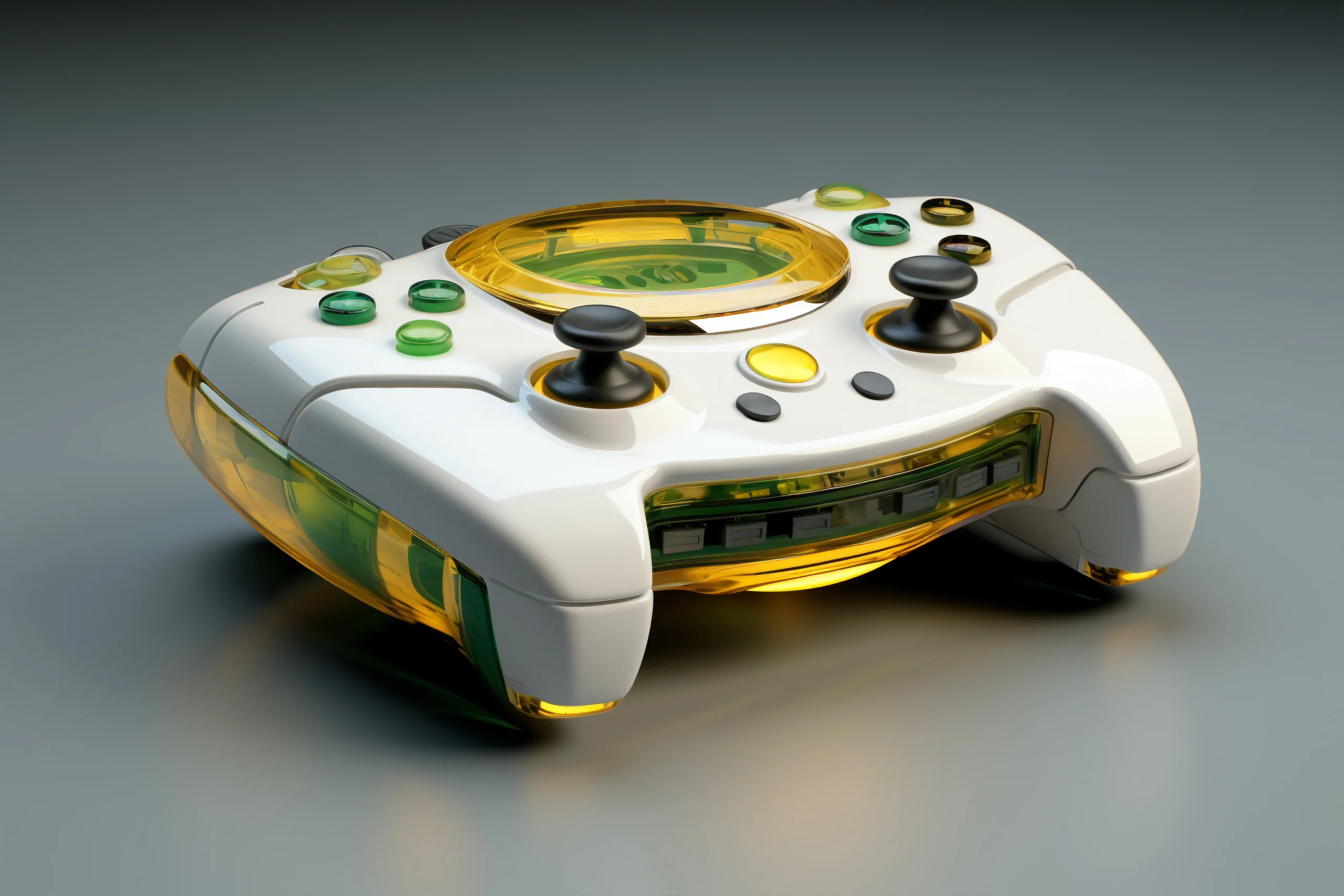
When Your HSS Gamepad Just Won’t Stay Connected
You sit down to play, turn on your HSS gamepad, and something immediately feels wrong. Inputs lag, the connection drops, or the controller refuses to pair. It’s frustrating—especially when it worked fine before.
Connectivity issues with an HSS gamepad are usually fixable. The key is to understand what’s causing the problem instead of guessing.
What Connectivity Issues Look Like
Common signs to watch for
Not every issue shows up the same way. You might notice:
- The gamepad not pairing at all
- Random disconnections during gameplay
- Input delay (lag)
- Buttons responding inconsistently
- Controller connected but not working in-game
Each of these points to a different underlying issue.
Start With Basic Checks
Quick fixes that often solve the problem
Before going deeper, check the essentials:
- Make sure the gamepad is fully charged
- Restart both the controller and your device
- Turn Bluetooth off and back on
- Stay within a close range
These small steps can fix temporary glitches quickly.
Bluetooth Interference Can Disrupt Connection
Why your signal keeps dropping
Wireless interference is a common cause of unstable connections. Devices that can interfere include:
- Wi-Fi routers
- Wireless headphones
- Other Bluetooth controllers
- Nearby smart devices
Try turning off nearby devices and test again. Even moving a few feet closer can make a difference.
Fixing Pairing Problems
Reset and reconnect properly
Old or corrupted pairing data can cause connection failures.
Follow these steps:
- Go to Bluetooth settings on your device
- Remove (forget) the HSS gamepad
- Turn Bluetooth off, then back on
- Put the gamepad in pairing mode
- Connect again from scratch
This often resolves stubborn pairing issues.
Software and Driver Issues
When the problem isn’t hardware
Outdated software can affect how your controller behaves, especially on PC.
You might experience:
- Input lag
- Missing button responses
- Unstable connections
What helps:
- Update your system software
- Update or reinstall Bluetooth drivers
- Check for gamepad firmware updates (if available)
Battery Problems Affect Stability
Low power can cause hidden issues
A weak battery doesn’t just turn the controller off—it can cause:
- Intermittent disconnections
- Weak signal strength
- Delayed inputs
Always test with a fully charged controller before troubleshooting further.
Use Wired Mode to Diagnose
A simple way to isolate the issue
If your HSS gamepad supports a cable:
- Works fine wired → problem is wireless
- Still has issues → possible hardware fault
This step helps you quickly narrow down the cause.
Game Compatibility Matters
Not every game supports every controller
If your gamepad connects but doesn’t work properly in a specific game:
- Check controller settings in the game
- Enable generic controller support (on PC)
- Test the controller in another game
If it works elsewhere, the issue is likely game-specific.
When It Might Be a Hardware Problem
Signs your controller may be faulty
If nothing works, the issue could be the device itself.
Watch for:
- Frequent disconnects even at close range
- Buttons or sticks failing randomly
- Controller not entering pairing mode
In such cases, repair or replacement may be necessary.
A Smarter Way to Troubleshoot
Step-by-step approach
Instead of guessing, follow this order:
- Check battery and restart devices
- Re-pair the controller
- Remove interference
- Update software and drivers
- Test with a wired connection
- Try another device or game
This method helps you pinpoint the exact issue faster.
Final Thoughts
Connectivity issues with an HSS gamepad can feel random, but they usually come down to a few clear causes—interference, pairing problems, outdated software, or low battery.
By working through the problem step by step, you can quickly identify what’s wrong and fix it without wasting time. And once the connection is stable again, your gaming experience goes back to what it should be—smooth and uninterrupted.